The phone app
Open Caseo on a phone and you get a separate app built for the corridor outside court: what's next, who to call, and a fast way to note what happened.
Getting it on your phone
There is nothing to download from an app store. Sign in to your firm's Caseo address in your phone's browser and Caseo recognises the phone and opens the phone app (at /m). Tablets and computers get the full desktop app.
- On an iPhone, open Caseo in Safari, tap Share, then Add to Home Screen.
- On Android, open Caseo in Chrome, open the menu and choose Add to Home screen or Install app.
- The Caseo icon opens straight into your last firm's Today screen.
The thumb bar
Navigation sits in a bar along the edge of the screen: + (add), Search, then the tabs Today, Matters, Diary and Money. The Money tab only appears if your access includes the firm's accounts (Administrators, Supervisors and Bookkeepers have it; your Administrator can give it to someone else). The bar sits on the left by default; if you hold your phone in your right hand, change Thumb side in your profile.
Today
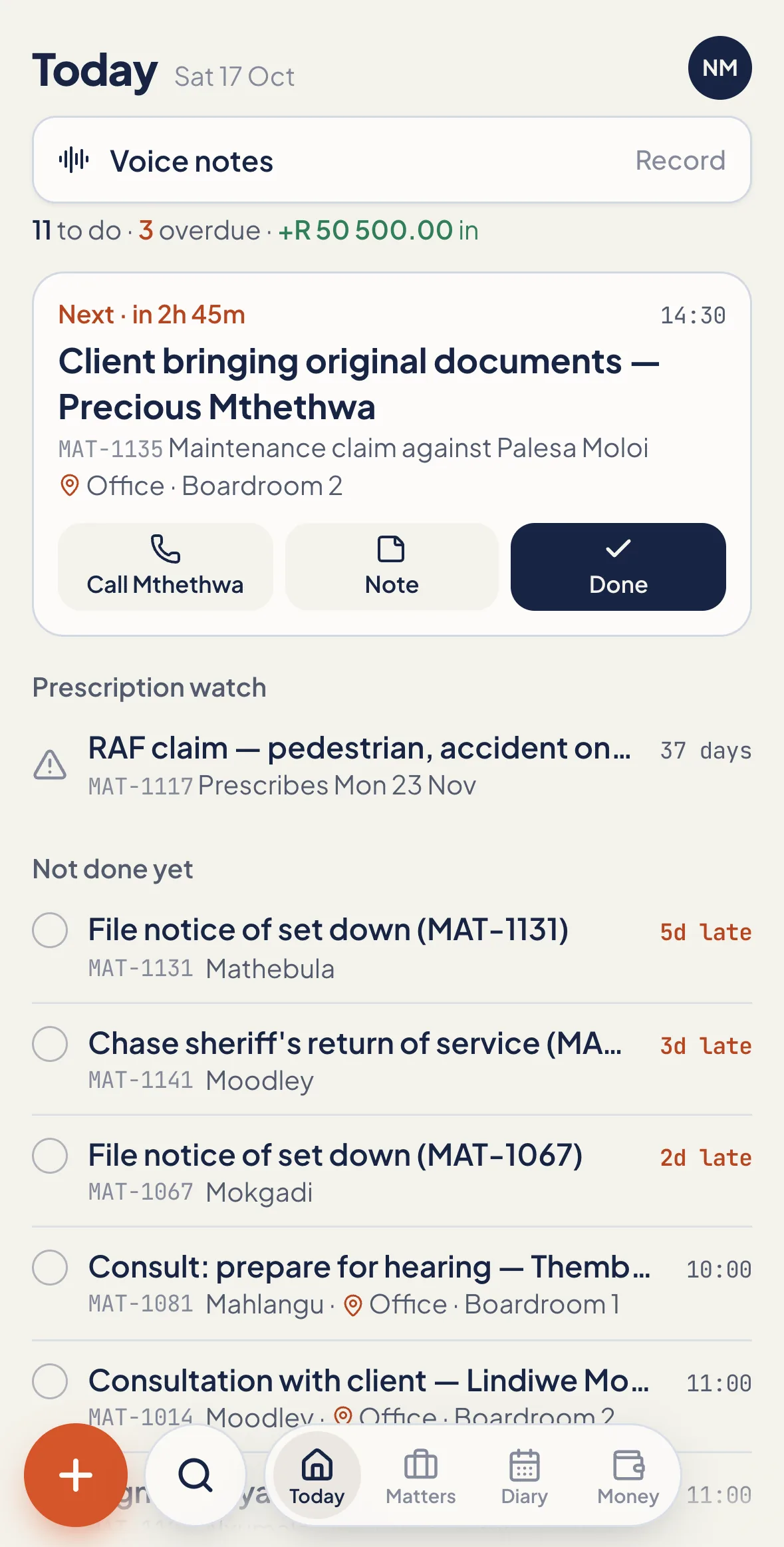
The Today screen answers "what now?". At the top is a one-line summary: how many things are to do, how many are in court, and how many are overdue. If your access includes the firm's accounts you also see today's trust receipts; tap it to open Money.
- Next up is a card for the next open diary item: time, matter, client, the custody status, the last court note and the location. It has buttons for Directions (opens Google Maps), Call the client, Outcome (court items) or Note, and Done.
- Prescription watch lists open matters that prescribe within 90 days. Anything within 30 days is highlighted.
- Not done yet shows overdue items ("3d late") and anything from earlier today you haven't ticked off.
- Later today lists the rest of the day. Done items can be shown or hidden.
- Next court day looks ahead, skipping weekends and South African public holidays, and says when it follows a holiday.
- Recently worked on shows the five matters you touched last, with their last note.
Working a diary item
- Tap the circle to mark it done (or not done). Tap the row to open the matter.
- Swipe right to mark it done.
- Swipe left to record a court outcome (court items) or move it to the next court day (everything else).
- Every done or move shows an Undo button for a few seconds, so there are no "are you sure?" dialogs.
Matters
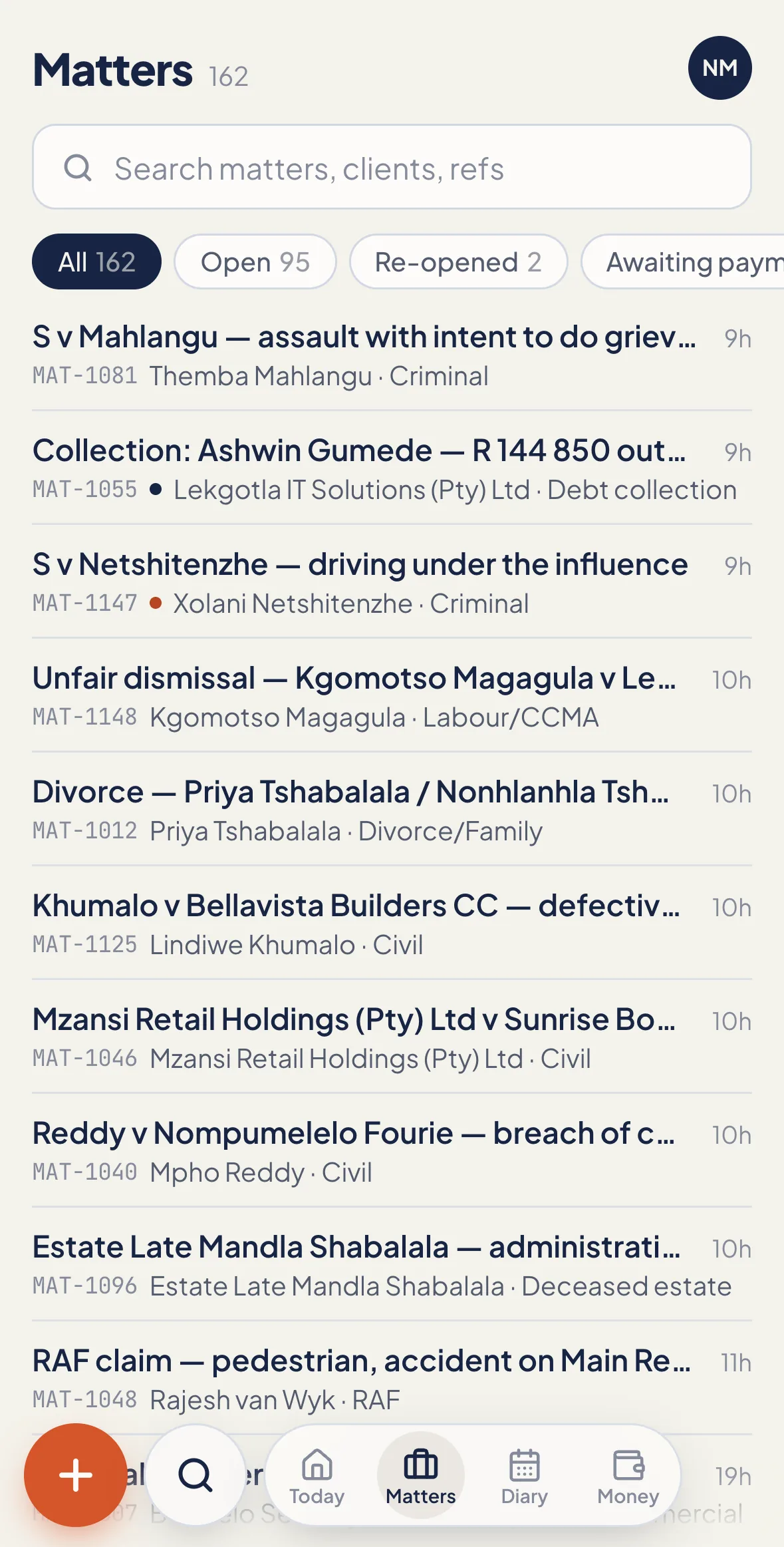
The matter list is sorted by most recent activity, with status chips along the top (All, Open, Re-opened, Awaiting payment, Closed, Finalized) showing a count for each. Tap the search bar to find a matter by name, ID number, phone number or reference.
Opening a matter shows the reference, type, client, masked ID number, the client's phone numbers (tap to call), status, custody, the prescription date and the next diary item. If your access includes money on matters, you also see the trust balance. Below that are four tabs:
| Notes | The matter's timeline: notes, calls, WhatsApp updates and court notes. Type a note at the bottom, switch on Log as call to record it as a call, or tap the microphone to dictate (where your phone's browser supports it). |
| Diary | Every reminder on the matter, with a Diarise button to add one. |
| Money | Only if your access includes money on matters. Trust balance, whether the client is in credit or owes the firm, and the matter's transactions. To record money, use the + button (needs a connection). |
| Docs | The matter's documents. Tap one to open it in the viewer. Upload adds files from the phone; Scan opens the camera so you can photograph a document straight onto the matter. |
Swipe right, or tap Back, to close the matter.
Diary
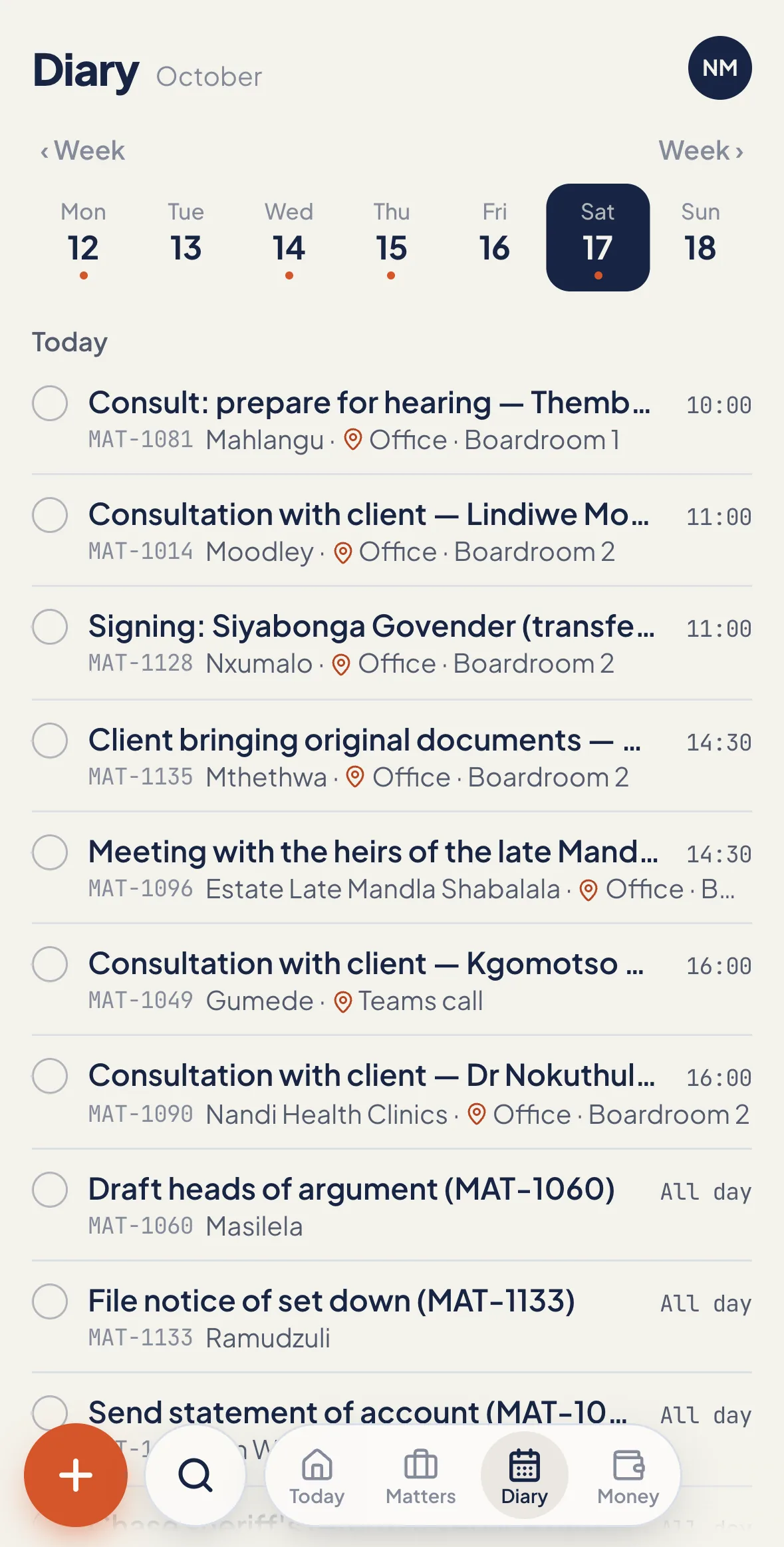
A Monday-to-Sunday week strip shows a dot on days with open items and marks public holidays ("courts closed"). Tap a day to see its items, or Diarise for that day to add one already dated. Below the week, Later shows what's coming in the following four weeks.
Money
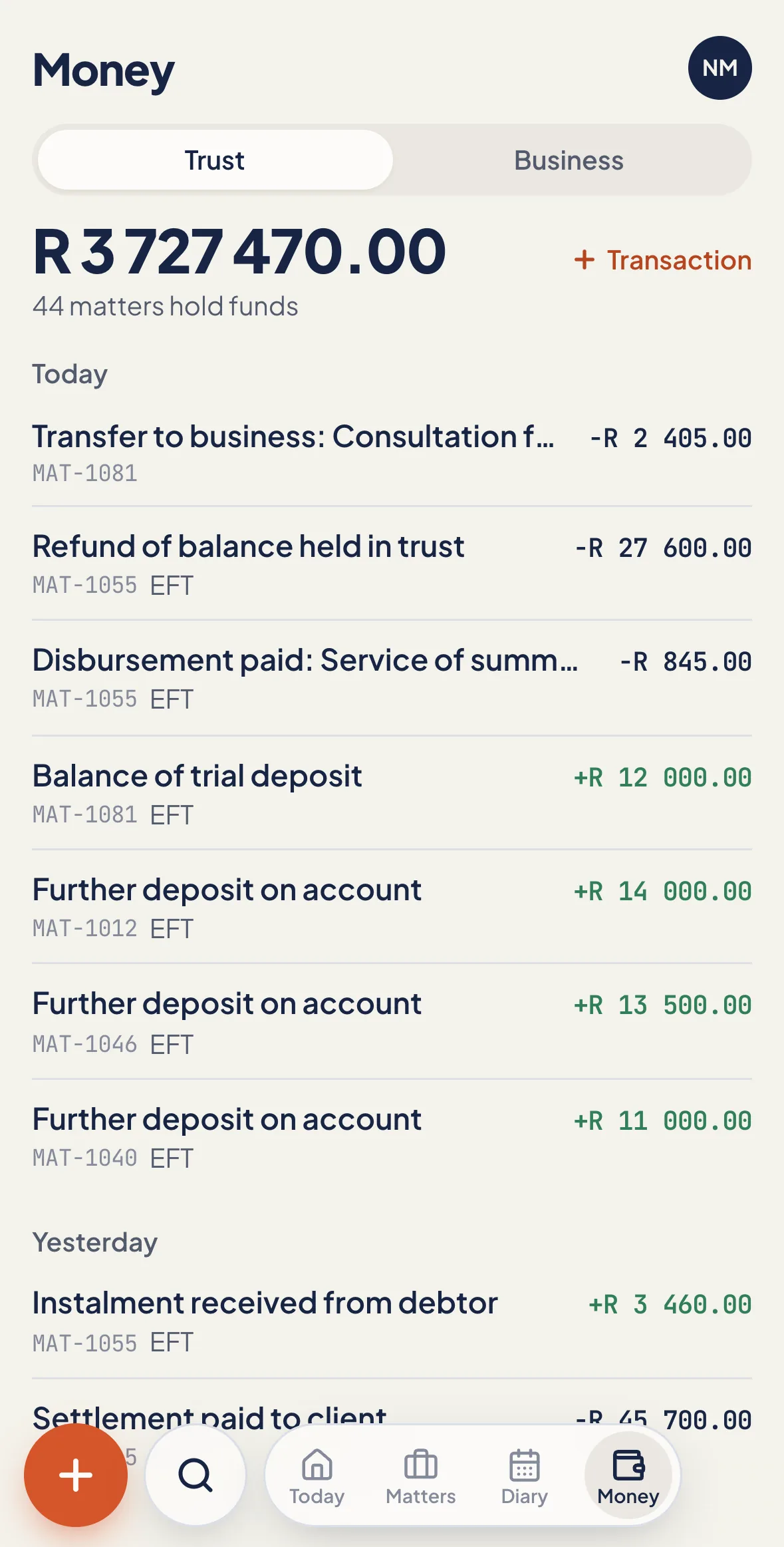
If your access includes the firm's accounts, you can switch between Trust (the firm's trust balance and how many matters hold funds) and Business (the balance after expenses and salaries). Below is the last 30 days of transactions, grouped by day. Tap one to see the amount, receipt number, method, matter, who captured it and whether it has been reversed.
The + button
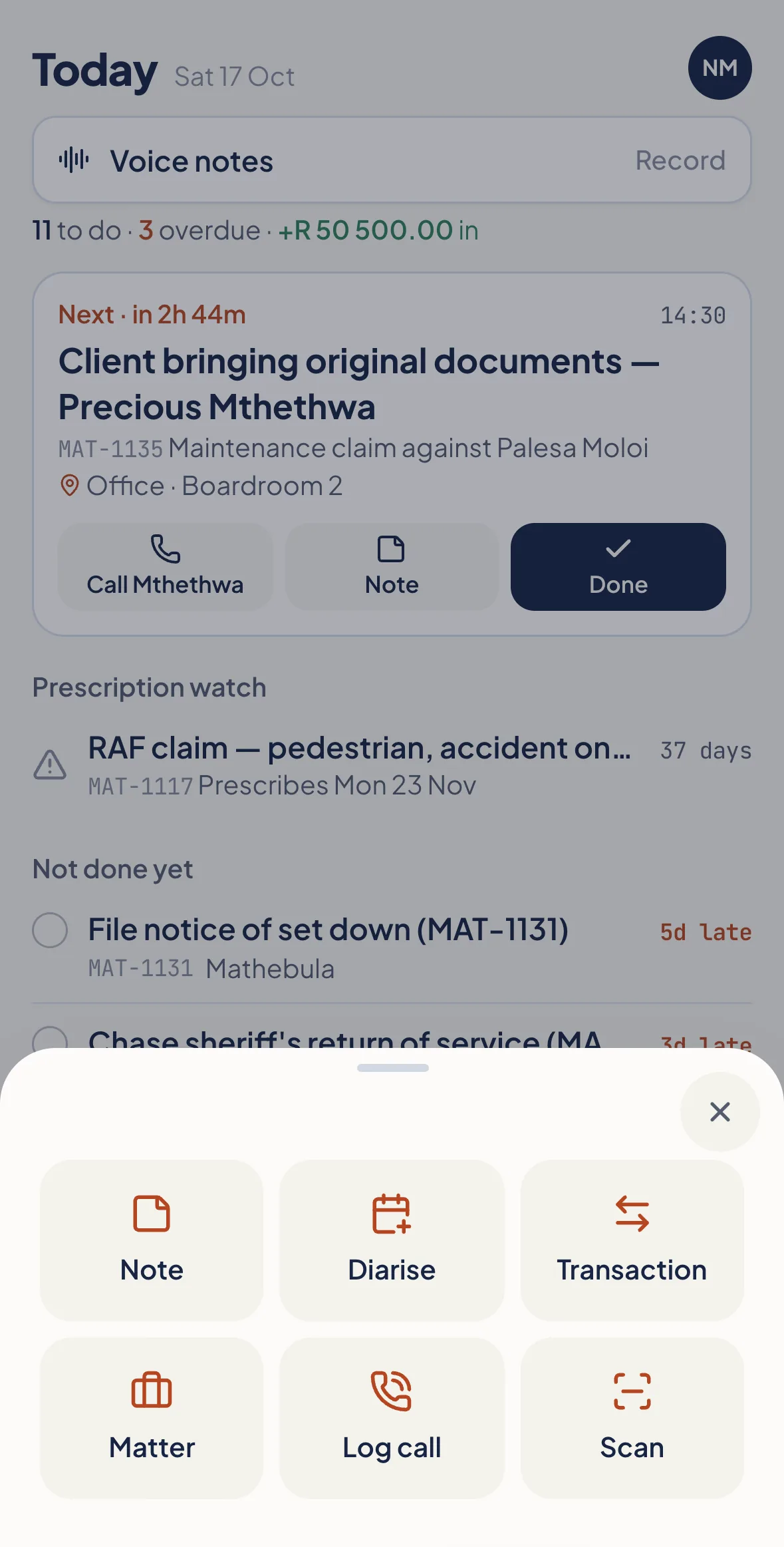
+ opens six actions: Note, Diarise, Transaction, Matter, Log call and Scan. All but Matter start with a matter picker, defaulting to the matter you're in (or your most recent open matter), with chips for your twelve most recent open matters.
| Note | A quick file note, typed or dictated. |
| Diarise | A reminder with date chips (today, tomorrow, +2, +5 days or pick a date), time chips (all day, 08:30, 09:00, 10:00, 14:00), an optional place, and a Court date switch. |
| Log call | Records a call: duration, notes, and an optional follow-up (tomorrow or next week) that creates a "Follow up: call…" task on the next court day. |
| Scan | Opens the camera. Photos are saved to the matter's documents, named with the date and matter reference. |
| Transaction | Records money received, a fee transfer, an expense or a payout, as on the desktop, for the types your access allows. You review it before it posts, and it needs a connection. |
| Matter | Opens a new matter: pick or add the client, run the conflict check and create it, or use the quick path for a new arrest. It needs a connection, because the matter number and the conflict check come from the server. |
When you call a client from Caseo and come back to the app afterwards, Caseo offers to Log the call with the minutes already filled in.
Recording a court outcome
Tap Outcome on a court item and pick what happened. Criminal matters offer Postponed, Remanded in custody, Bail extended, Part-heard, Struck off roll, Withdrawn and Finalised. Civil matters offer Postponed, Part-heard, Judgment reserved, Settled, Struck off roll and Finalised.
- For outcomes with a new date, choose it with chips (+7, 14, 21, 28 or 42 days, moved onto a court day) or pick one, set a time and a reason.
- Caseo warns you if the new date is a public holiday, if it clashes with another diary item at the same time, and if a bail postponement goes past seven days.
- Criminal matters record custody: in custody, on bail or warning.
- Record who appeared (you, counsel or a correspondent), a next step for a colleague, and a note.
Saving does it all at once: ticks off today's court date, diarises the next one, creates the next-step task, writes the court note to the matter and updates custody. Finalised, Withdrawn and Settled move the matter to Finalized, which Caseo refuses while the matter still holds trust money or is in debit. You can undo an outcome for 15 minutes; only the person who recorded it or an Administrator can.
If the client has a phone number, Caseo then offers a short, editable WhatsApp update. It only opens WhatsApp with the message ready; nothing is sent unless you send it, and Caseo notes on the matter that an update was sent.
Search
Phone search uses the same engine as the desktop but shows matters, diary items and notes. Search by client name, ID or registration number, phone number, email, matter reference, description, opposing party or words in a note. Date words like today, tomorrow and next week, and overdue, work too. See Search and filters.
Documents on the phone
The viewer opens PDFs, Word documents (.docx), images and text files, with pinch-to-zoom up to 400%. Share hands the file to your phone's share sheet (email, WhatsApp, Files). Other file types can be opened in another app.
Working without signal
Court buildings are often dead zones. Once the app is open, notes, calls, diary entries, done ticks, moves and court outcomes you capture without signal are kept on the phone and sent when the signal returns. A banner shows "No signal" with the number saved on the phone, then "Syncing". If the server refuses a change, the banner lets you review and discard it.
- Today and your last 15 opened matters stay readable, marked "saved copy".
- Money is never recorded offline, new matters need signal, and uploads need signal.
- Signing out warns you if changes haven't been sent yet, then clears the saved copy from the phone.
Switching to the desktop site
Your profile (tap your initials on Today) has Use desktop site, your firm with a Switch link, the thumb-side setting, links to Members, Firm settings and Help, and Sign out. If you chose the desktop site on a phone, a bar at the bottom offers to reopen the phone app.
Something unclear or out of date? Email hello@caseo.co.za.