The client portal
Each client can get a private link to a page on your letterhead where they see their matters, documents and invoices, send you messages and upload files. No password, no app.
What the client sees
The portal opens with your firm's logo, name and brand colour on one conversation, newest at the bottom like a chat. Everything you and the client exchange is in it:
| Messages | Yours and theirs. The client chooses whether a message is general or about a particular matter. |
| Invoices | Each issued invoice (never a draft) as a card: number, total, whether it is due, part-paid, paid, overdue or cancelled, what is still due and the due date. Open shows it as printed; How to pay shows the banking details printed on it, with the invoice number as the reference. |
| Statements, receipts and documents | What you send with Caseo, and every document you share with the client, with Open and Download. |
| Their uploads | Each file they sent, marked Received, and Seen by your firm once someone has opened their uploads. |
| FICA requests | What you asked for, each item Still needed, Received or Seen, with an Upload button beside what is still needed. |
Chips at the top show All, Messages, Invoices or Documents only. Matters at the top lists their matters: reference, status, type, date opened, the attorney and when it was last updated.
The + button in the message box offers Upload a file, Take a photo or scan (one photo per page with the phone camera; the pages go to you as one PDF) and Send a message.
The portal does not show trust balances. A statement of account reaches the client when you send it with Caseo from the matter's account (see Statements of account).
Inviting a client
- Open Client Portal in the sidebar, or open the client (or one of their matters) and go to Share Portal.
- Click Create portal link. Caseo makes a secure link that lasts 90 days.
- Share it: Copy link to paste into WhatsApp or an SMS, or Send link with Caseo, which emails and texts it to the client (with sending off, it opens a new email in your own mail program).
Caseo sends a new link by itself only when an Administrator has switched on Send portal links automatically in Settings › Notifications; otherwise nothing reaches the client until you share it. To invite several clients at once, select them on the Client Portal page and choose Create links.
Renewing and revoking
- Each client has one live link at a time. Regenerate makes a new link and the old one stops working.
- Revoke cuts access straight away (Caseo asks you to confirm).
- A client with an expired or revoked link sees a plain "Access denied" page explaining that the link has expired or been revoked. Send them a new one.
- The client's panel shows when the link was created, when it expires (highlighted when fewer than 14 days are left), when it was last opened and how many visits there have been.
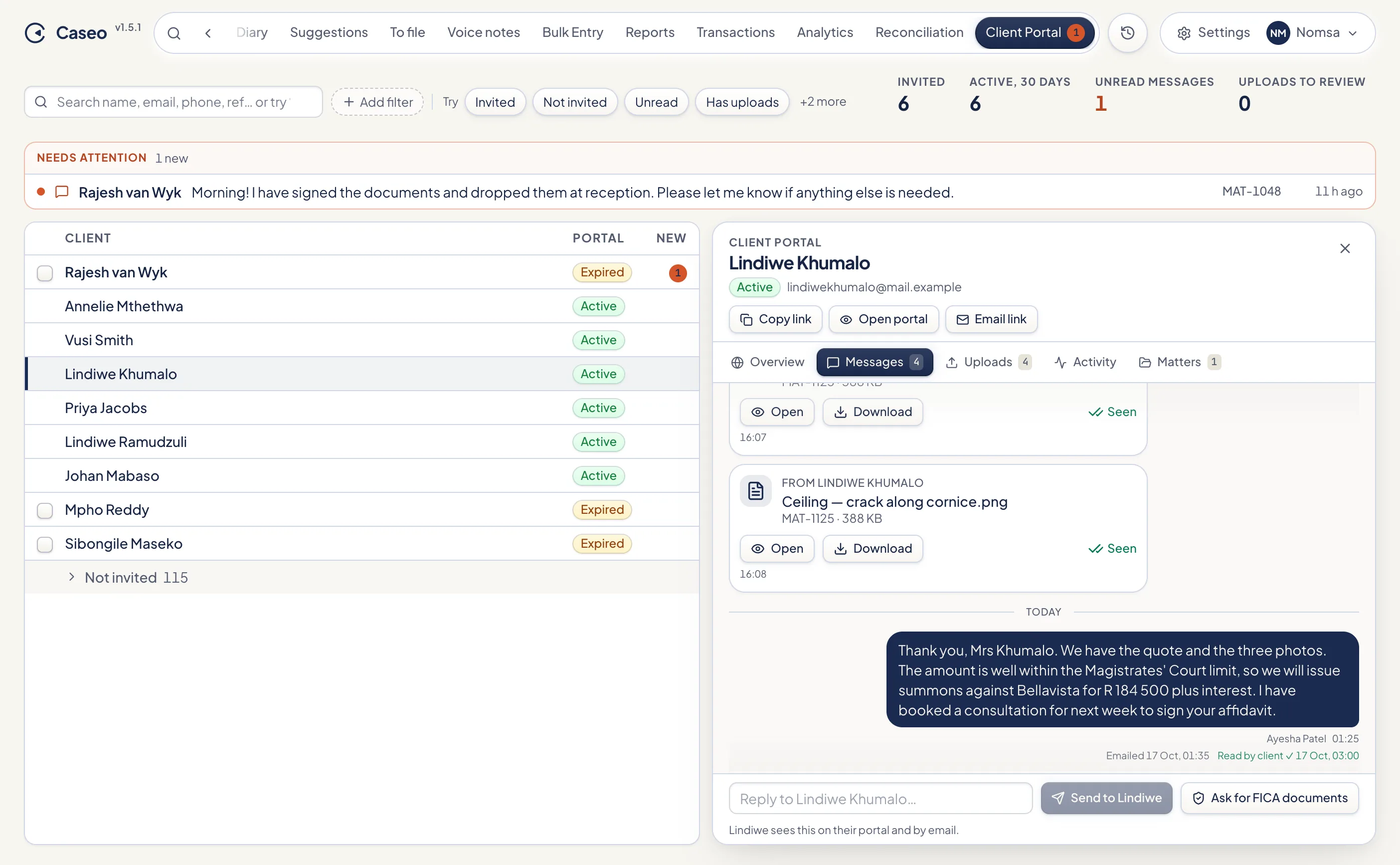
The Client Portal page
Every member can use the Client Portal page. Across the top are four figures, each of which filters the list when clicked: Invited, Active, 30 days, Unread messages and Uploads to review.
The list shows each client's matters, portal status, when they were last active and unread items. Statuses are Active (used in the last 30 days), Invited, Expired, Revoked and Not invited. Clients not yet invited are folded away at the bottom. The search bar understands phrases like "never opened", "has uploads", "unread" and "link expired".
Open a client for their Overview, Messages, Uploads, Activity and Matters.
Messages
A client's Messages on the Client Portal page show the same conversation the client sees: the messages, the invoices, statements and documents you sent or shared (with Sent to client and how it went under each), their uploads and your FICA requests. Reply there, or from the Messages tab on the matter or the client. Under each message you send, Caseo shows what happened to it:
- Emailed at a time, then Delivered, or Bounced (check the client's email address), or delivered but marked as spam.
- Read by client with the time, or Not read yet.
Caseo warns you above the message box if the client has no email address, if their last email bounced, or if their link is missing, expired or revoked.
Email notifications
- To the client: when you message them, they get an email saying there's a new message from your firm, with a button to open the portal. The message itself is not in the email. If you send several messages in a row, they get at most one email every ten minutes.
- To your team: when a client messages or uploads, the matter's attorney (or the Administrators if there's no attorney) gets an email, at most one per matter every 15 minutes, and not at all if they've already seen it in Caseo.
- Both can be switched off for the whole firm under Settings → Notifications, and each person can switch off portal alerts for themselves.
Asking for FICA documents
In a client's Messages, Ask for FICA documents lets you tick what you need (for a person their ID and proof of address; for a company, trust or estate its registration documents, the IDs of its directors, members, trustees or executors and proof of the business address). It goes to the client as a message, so they are told the way they are about any message, and they upload each item from the request.
Uploads
Clients upload files to one of their matters, or scan pages with their phone camera into one PDF. Accepted: PDF, JPG, PNG, HEIC, Word and Excel files, up to 15 MB each; a file that can't be sent is explained to the client in words. Uploads land in the matter's documents, marked as uploaded via the portal, and show in Uploads to review.
Knowing when something arrives
- The Client Portal item in the sidebar shows an unread count.
- Rows show amber chips such as New message or New upload, until you open the relevant tab.
- When a client messages or uploads while you're in Caseo on a computer, a short notice pops up.
- Client messages and uploads also appear in the dashboard's recent activity.
Something unclear or out of date? Email hello@caseo.co.za.