Matters
Every matter has one panel that holds everything about it: notes, diary, money, documents, time and the client's portal.
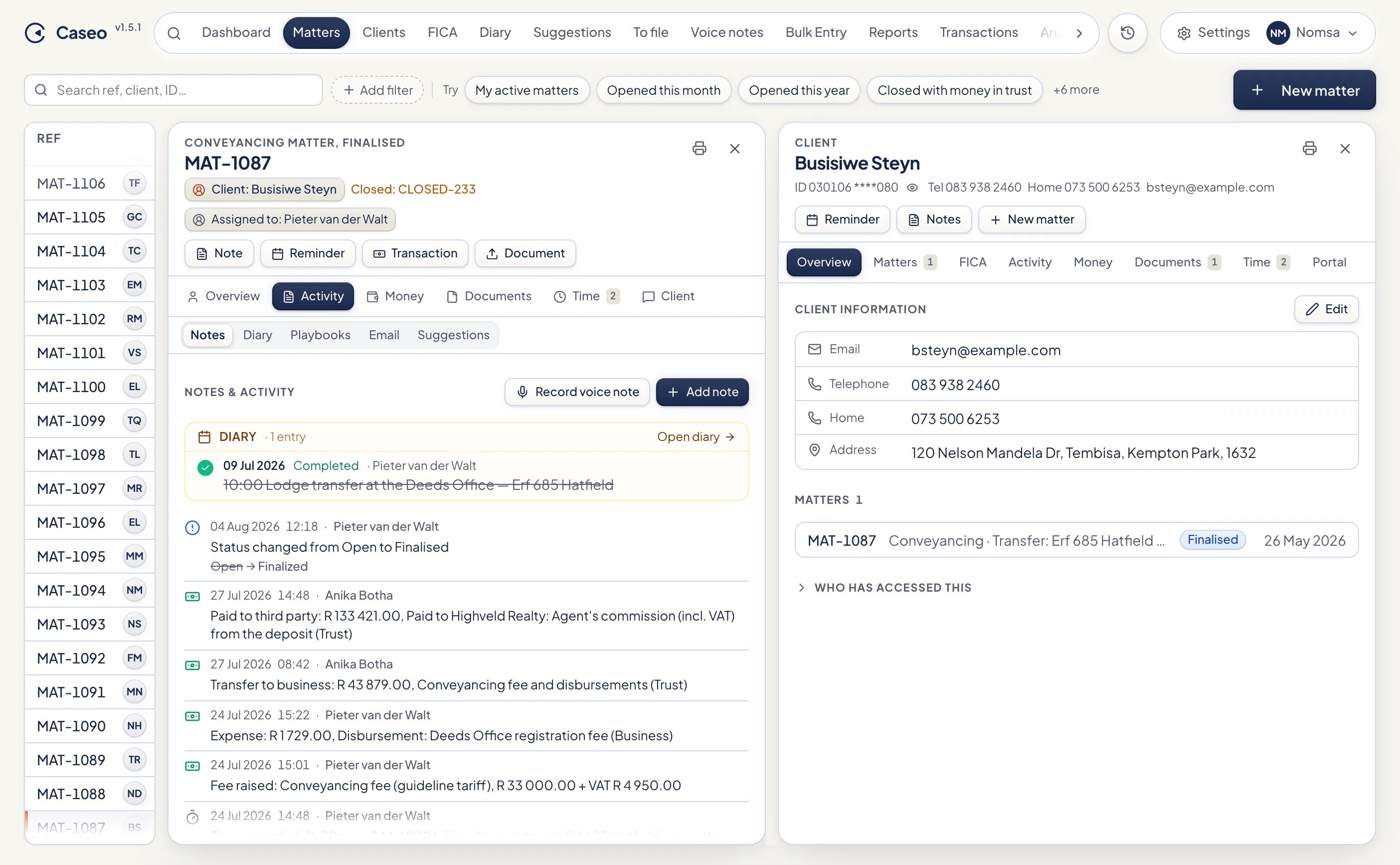
The matter list
The list shows reference, client, status, type, description, who it's assigned to and the date opened, newest reference first. Type in the search bar to find a matter by reference, client, ID number or description, or use the filter chips (see Search and filters).
- Click a row, or press Enter on it, to open the matter panel. Click the client's name to open the client beside it. With both open, the list narrows to a strip of references.
- Tick several matters to Reassign them to someone else or Change referral source in one go.
- Archived shows archived matters, which are otherwise hidden (search still finds them).
- The panel's address can be copied and shared with a colleague: it opens the same matter and section.
The matter panel
Across the top are quick actions: Note, Reminder, Transaction (Supervisors and Administrators) and Document. The sections:
| Overview | The client (name, masked ID or registration and VAT numbers for organisations, email, phones, address) and the matter: status, the other side and their attorney, who it's assigned to, your reference, referral source, dates, last activity and description. Edit changes these. Also holds Key dates and the conflict check result. |
| Notes & activity | A timeline of everything that happened on the matter: notes, status changes, reassignments, money, statements, invoices. Add a note (⌘/Ctrl+Enter saves), and optionally email it to a colleague at the same time. |
| Diary | The matter's reminders. See Diary. |
| Money | Transactions, Client account, Receipts, Invoices and Summary. See Client account and statements. |
| Documents | Upload files or drag them onto the section. PDFs, Word, Excel, images (including iPhone HEIC photos), text, CSV, RTF, OpenDocument and saved emails (.msg, .eml), up to 15 MB each. Files open through a link that expires after a few minutes. |
| Time | Log time spent: date, hours and minutes (in 6-minute steps), description, optional hourly rate and a Billable tick. |
| Client | Portal Messages, the client's FICA record and Share Portal. See Client portal and FICA. |
Key dates and prescription
Under Key dates in the Overview, record the accident or cause-of-action date and the prescription date. Caseo suggests a prescription date (for RAF matters three years from the accident, otherwise three years under the Prescription Act), but only saves a date you confirm.
When you save a prescription date, Caseo diarises reminders 6 months, 3 months and 1 month before it, for the matter's attorney. Matters prescribing within 90 days also show on the phone app's Today screen, and the Prescription within 90 days filter finds them.
Statuses
| Status | Use it when |
|---|---|
| Open | Work is under way. |
| Awaiting payment | The work is done and you're waiting for the client to pay. |
| Closed | The file is closed. Caseo gives it a closing reference (CLOSED-001, CLOSED-002…) the first time it's closed. |
| Finalized | Everything is done, including the money. |
| Re-opened | A closed or finalised matter is active again. |
Closing and finalising a matter
When you move a matter to Closed or Finalized, Caseo shows a closing checklist:
| Check | Effect |
|---|---|
| Trust money still held | Blocks Finalized. Closed is allowed, but you must give a reason, which goes on the matter's history. |
| Trust in debit | Blocks Finalized. |
| Fees or disbursements owed to the firm | Warning |
| Unpaid disbursements | Warning |
| Unpaid invoices | Warning |
| Open diary items | Warning |
| No statement issued since the last money movement | Warning |
Archiving and deleting
- Archive (Supervisors and Administrators) hides a matter from the list without losing anything. Restore it from the matter's Overview. A matter still holding trust money can't be archived.
- Delete (Administrators) is only possible for a matter with no money history. Otherwise Caseo offers to archive it instead.
Reference numbers
Caseo numbers matters for you (MAT-001, MAT-002…). The prefix and starting number are set under Settings → Numbering, including a reserved range for old paper files captured through Bulk Entry.
Something unclear or out of date? Email hello@caseo.co.za.